Tuesday, 26 April 2016

Top 3 ways to break Administrator Password in Windows 7 without Login

Being locked out of Windows 7 computer in the case of forgetting Windows 7 administrator password and don't know how to break. Take it easy. You can master how to break administrator password in Windows 7 without login in top 3 ways as below.

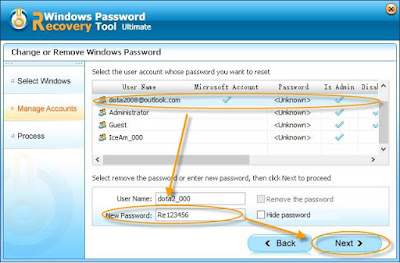
Top1: To use Windows Password Recovery to break administrator password Windows 7


Step1: Download and install Windows Password Recovery on any accessible computer.
Step2: Burning Windows Password Recovery to a CD/DVD or USB disk. Then insert the newly created disk to the Windows 7 computer.

Step3: Choosing the administrator account to break the password, after that restart your computer. You can login without administrator password.

To break Windows7 administrator password is divided into two, one is not forget the password to log in, the other is able to log in, but the password is forgotten. Specifically how to solve the problem in both cases it, please see the following detailed answer.

Top 2: Do not forget the password to log into the management Windows 7 password breaking methods


Step 1: Getting a U-PE.
Step 2: Into the PE, and then locate the system installation disk into the drive system - Windows folder -system32 folder, find the "OSK.exe", in addition to a copy tray, then the CMD .exe copied to the E drive.

Step 3: Then the E disk CMD.exe renamed OSK.exe, 'cut' to the system drive -"Windows" folders -system32 Folder 'cover' the original OSK.exe.
Step 4: After that shut down, enter the Windows7 system, click on the lower left corner of the screen to enter the password in "Tools" button.


Step 5: Then choose not to use the keyboard to type. On here enter net user to change the password, for example: My username is MYTH, put password reset 123456, then enter net user MYTH 123456.

Step 6: Finally, enter the password screen, enter the password you just reset can log in, and finally do not forget to F disk OSK.exe then covered back system32 folder.
Note: If you are prompted to seize power can't be modified, or return to PE Lane changes, otherwise just what people can use this to modify your password.

Top 3: The administrator can log on Windows 7 password breaking methods


If you can log in, but you forget the password can't be modified, it is easier to crack passwords.
Step 1: Click "Start", find the "Run".
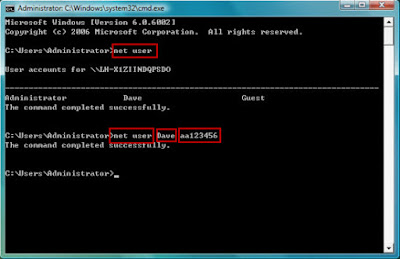
Step 2: In the run box type CMD, press the "enter" key to enter, then enter the string command: net user name you want to change your user password.

In the end of reading on this blog, do you correct know how to break administrator password in Windows 7 without login? If not, you can try to read again to remember more. You can choose the easiest method to yourself.


Wednesday, 30 March 2016

Top 3 Tricks about How to Bypass Windows 7 Professional Login Screen

"How do I bypass the Windows 7 login password without password recovery disk? My sister has passed away & I've been copying her pictures off of her laptop for the family & I haven't finished. It logged off last night and now it's asking for password & no one knows the password. I'm almost positive there is a way to go around this password but I can't seem to figure it out on my own! Please help ASAP THANX."

It comes out a common sense to create a Windows 7 password for laptop protected. At the same time, a feasible advice is to create a Windows 7 password reset disk in case that you forgot password on Windows 7 laptop. But without password reset disk, how to bypass Windows 7  password? Are there any other good and convenient ways to bypass Windows 7 password? Now, it's time to learn how to bypass Windows 7 professional login screen password with the following three tips and tricks.


Trick 1: Bypass Windows 7 Professional Login Screen with Command Prompt


By using this method, all you need is a copy of the Windows 7 Professional installation disk and Sticky Keys trick (an accessibility feature that allows a user to tap the Shift, Ctrl, Alt, or Windows key once to achieve the same effect as holding the key down).
Step 1. Boot your computer from the installation disk.
Step 2. After loading the setup files, select your language and click Next > click the "Repair your computer" link on the Install Windows screen > select the system to repair and click Next > click "Command Prompt" to open command prompt window.
Step 3. Now you can reset the password. Just type "net user UserName Password" (replace UserName and Password with the combination you want) and press Enter key.
Step 4. Close command prompt window, restart the computer, and then you can login with new password on login screen.
By taking this method, you will lose access to encrypted files, encrypted email messages, and the stored passwords in Internet Explorer and network resources. Remember to back up your important data regularly.


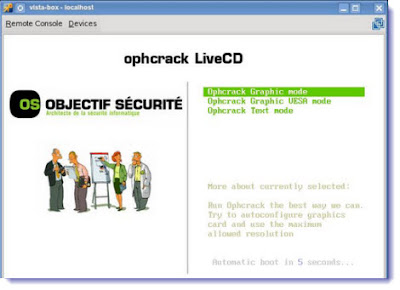
Trick 2: Windows 7 password Bypass with Ophcrack


Ophcrack is a freeware that is able to bypass password in Windows 7 local login screen. As it is free, you don't need to spend any money on it. However, it is also hard to use, and some of the users feedback it doesn't work sometimes. So you can also try to use this free way. And if it is not working, get to another methods.


Trick 3:Bypass Windows 7 Admin Password with USB Drive


If you don't have an installation disk, you can use Windows Password Buster to bypass Windows 7 admin password. This software can help you reset administrator password with USB flash drive or CD/DVD. Even if you are a computer newbie, it's possible for you to bypass the password in minutes.
Step 1. Download and install Windows Password Key Professinoal on an accessible computer from http://www.lostwindowspassword.com.
Note: When you are trying to run some programs, the computer will ask for the permission. So please install the software on a computer that has administrator privileges.
Step 2. Run the software to make a bootable USB flash drive.
Step 3. Boot the locked computer from the USB flash drive and bypass admin password.


Though you can bypass Windows 7 Professional login screen password and login screen through Windows Password Key, you had better create a password reset disk when you are able to login computer in case that you forget the password again.

Wednesday, 24 February 2016

How to Fix Newly Installed Windows 10 Asking for Unknown Password

After newly installed Windows 10, one day it asking for unknown password. How to fix newly installed Windows 10 asking for unknown password is below.

How to use Windows Password Key to reset Windows 10 password


Windows Password Key is a all in one tool, it can help us unlock all versions Windows password in quickest way. Learn more about its functions as below.
Step 1: Download Windows Password Key and install it on any accessible computer.

Step 2: Using a CD/DVD or USB to burn Windows Password Key on it and then insert the newly created disk to the Windows 10 computer.
Step 3: Choosing a Windows 10 account that you want to reset the password and then click reset Windows password, after that restart the computer.

Windows 10-how to enable a local account


Windows10 systems installed in our process, through your registered account to activate the Microsoft System, so when the installation is complete, the system will default to use our Microsoft account to log on as a system user. Microsoft account password requires a complex; it's a trouble every time you sign. Briefly describe how Windows10 added local accounts, so we may as well as previous Windows 7, you can use the account without setting a password to log on.

Step 1: Windows10 system, and finally restore the start menu, start button appears on the lower left of the screen.
Step 2: Use the right mouse button to click the "Start menu" button, then select "computer management" option.
Step 3: Then computer management in the left-hand column, click on the "local users and groups" column.Then in the right pane, double-click to open the "user" section.

Step 4: You can then see which are familiar with the local user, here we can add a new user, or you can enable the disabled users. Here was disabled by the System Administrator enabled users.
Step 5: After that, please right click on the user, and then select the "Properties" option, then in the General properties page to eliminate the "account is disabled" option, and then click the "OK" button.
That’s all.


Windows 10 how to set or cancel the login password


Step 1: Click on the lower left corner of the desktop win key, enter run in the search box on the start menu, after the search to run.
Step 2: Open the run program, type netplwiz in the blank box, and then click the OK button.

Step 3: Requires a login account password: tick "use this computer, the user ... ...” click "apply", you need to fill in the account number and password was OK.
Cancel login password: enter the account page; select an account to use the computer, as shown in the following illustration, users must enter a user name and password check box to untick.

Step 4: Cancel login password: pop password account screen, enter the password, and click OK to complete the change, next time will automatically log on with this account directly from lost passwords!

After that, have you learned how to fix Windows 10 asking for unknown password in easy way? If not, read again and make it clear. Good luck to you.

Tuesday, 26 January 2016

Password Is Not Recognized in Windows 8, How to Fix It

Question: Password is not recognize in Windows 8, how to fix it?
“Help! Windows 8 is not recognized my password. When I login to my live.com account on Windows 8 it tells me that my password is not correct. I have used the account.live.com/password/reset as directed by the login screen error many times and every time it does not accept the new password. Can you please offer me any assistance in resolving this issue? Or point me in the direction of a resolution? Are there issues with the password that my PC is checking against not updating properly?

Most of the "answers" I have seen indicate you can't help with password issues, but, obviously I am not having any issue typing in the correct password as I am logged into my account on another computer to type this, nor am I having any trouble changing the password as I have done this multiple items this morning. Sorry, but I am a little stressed that I am unable to login to my main PC since I went to bed last night. So does anyone know what to do when the password is not recognized in Windows 8? Thank you for your assistance in this matter!”


Answer 1:
Hi everyone -- not really an answer or solution here, but I had exactly the same problem as stated above.  Microsoft clearly doesn't have any solution to this (or even a desire to help).  What I had to do was the following:
1. Restore the PC from a last known good configuration:  hold down "shift" while selecting "Restart" -- this brings up some start up config settings.
2. In this start up config, find the menu item "Restore" (or something similar) and perform a restore from a last known configuration.  In my case, the last available restore was just a few days prior to my password problem.  This took approx. 20 minutes (for me), but after it completed, I was able to log in to my administrator account with my OLD password (not my most recent Microsoft Live password).
3. Go into Setup > PC Settings > Users and deselect password for the administrator account.  You will have to enter the password one last time (again, the OLD password) but when prompted for a new password, leave all the fields blank.
After doing this, I now have a local administrator profile that does not require a password.  I also deselected passwords for all of the other user profiles.

Answer 2:
Hi Everyone, I Also experienced the password problem with both local account and MS ID. The problem is that Win8 changes your keyboard so if your password contains characters other than letters and number, you are most likely entering incorrect characters without knowing. Best thing to do is enter your password in the username field so you can see the characters. Then at the bottom right, change your keyboard and test again.

Tuesday, 15 December 2015

How to bypass a Windows 7 Dell computer home screen when its locked out


In recent years, Dell has become one of the most popular computer brands. So when you were locked out of Windows 7 Dell computer, how to bypass the password. We can see more as below to learn how to bypass Dell computer Windows 7 password easily.

Dell Computer screen lock how to enter computer again


Step1: You should cancel screensaver password: On the desktop, right-select "Properties" - In the pop-up "Display Properties" dialog box, select the "Screen Saver" - canceled "is used when a recovery password protection."
Step2: Shortcuts: is not there when you press the alphanumeric, and if it is because you open the keypad lights num, this is more common in notebook. So before you follow the steps, you should clear which situation is yours.

Dell computer Windows7 password forgot, how to fix


Step1: You need to restart the computer, after the splash screen appears immediately, press the F8 key, and then select "Safe Mode with the command line".

Step2: In the end of the process is running, the system lists the system super user "administrator" and the local user “Jack” selection menu, mouse click "administrator", enter the command line mode.

Step3: On here you can type the command: "net “Jack” user 123456 / add", forcing the change "Jack" user's password is "123456." To this add a new user (such as: user name abcdef, password is 123456), then type "net user abcdef 123456 / add", after adding free "net local group administrators abcdef / add" command will users upgrading to system management group "administrators" of the user, and it has super powers.

Step4: Then restart the computer, running under normal mode is selected, you can use the changed password "123456" Login "Jack" user.
Of course, if you have a backup system before, then directly back to the original boot OK.

After the four steps, you can fix the trouble of Dell computer Windows 7 password forgot. However, this maybe complex for a part of Dell users to learn how to bypass Dell Windows 7 password when home screen locked out, if you feel it is hard for you, you can see more as below.

How to use Windows Password Key to bypass Windows 7 Dell computer password


Windows Password Key is one of the most popular Windows Password Recovery Tool on Google. More details about how to use Windows Password Key.

Step1: Download Windows Password Key and install it on any accessible computer.
Step2: Using a CD/DVD or USB to burn Windows Password Key on it. And then insert newly created disk on the Windows 7 Dell computer to running Windows Password Key.
Step3: Choose the Windows 7 account that you want to bypass the password. Then restart Windows 7 Dell computer. You have bypass Windows 7 password on Dell computer easily.

Only 3 simple steps to teach you how to bypass Dell computer Windows 7 password in quickest way, hope that easy blog is helpful to you. Good luck.

Saturday, 28 November 2015

I Have Forgotten my Microsoft Account Password, What to Do?

As Windows 10 and Windows Phone come to our eyes, the Microsoft account has become important to Windows users. With Microsoft account, we are able to login all the Microsoft service such as Microsoft forum and Windows computer login service. However, what if we can’t remember Microsoft account and unable to login local user account and finally locked out of Windows PC? Don’t be panic! Here in this article, you can see how to reset Microsoft account password perfectly.

Method 1: Change Microsoft Account Password with Password Reset Link

“I have forgotten my Microsoft account password and I can't update my Windows system, what can I do?” Some users ask that. Fortunately, Microsoft has made a solution to deal with this issue. Like other online websites, Microsoft provides a way to help you reset account password when you have trouble in signing in. Let’s see how to use it.

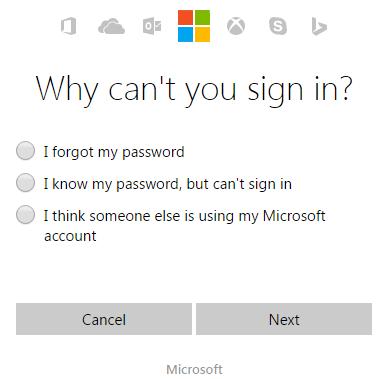
Step 1: Go to https://account.live.com/resetpassword.aspx and pick up the reason that you can’t login and click it. It is in order to case by case. Here we choose “I forgot my password” and click “Next” button.


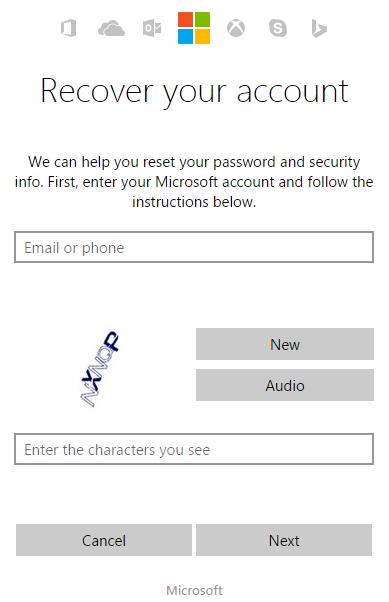
Step 2: Then you enter “Recover your account” page. You should type your Microsoft account address, the characters you see and follow the instructions to click “Next” button again.


Step 3: If you type the correct account and confirm code, Microsoft will sent a password reset link to your email address and then you are able to click it and to type the new password and login with the new password eventually.

Method 2: Reset Microsoft Account Password with Password Reset Tool

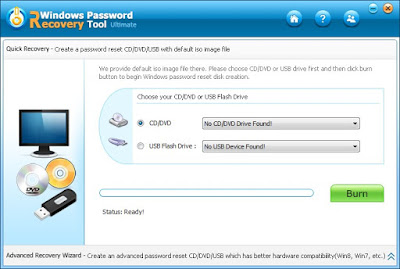
If you dislike the above method 1, you can use another wonderful way to reset Microsoft account password, which is to take advantage of Microsoft account password reset tool – Windows Password Recovery Tool Ultimate. You can see how to use it as below.
Step 1: Click HERE to download and install this software from another computer. Then use a flash drive to burn it.


Step 2: Take the drive to your locked computer, set BIOS to boot from your drive.

Step 3: Restart the machine again and then you can see the software interface. Choose your Microsoft account to reset it.

Friday, 30 October 2015

How to Access a Computer When You Forgot the Password on Windows 10

“I really feel so sad about that because of forgetting the password on my Windows 10 computer. I want to access my computer so that I can use it, but to my surprise I can't use it any longer. I really have no idea about the reason. I just can't remember the password of my Windows 10. Oh I forgot my Windows 10 login password, how to recover it? ”


Sometimes we are so busy about our life, so it is possible for us to remember all the things, such as our Windows login password. If you use the Windows 10 operating system, it is more likely for you to lose it. Now that we forgot the password of the computer local account login password, is there any way to recover it? YES! In this article, we are going to talk about how to access a computer when you forgot the password on Windows 10 instantly. Now you can see the solutions as below.

Solution 1: Reinstall Windows 10
If you can’t remember Windows 10 login password, don’t worry about it too much! You can reinstall it in this method. It is known to us that once we can’t access to Windows 10, the first way is to reinstall it. And at the same time, it seems that Windows 10 is not as popular as Windows 7. Some Windows users update their system to Windows 10 but then they dislike it. Consequently, they would like to use Windows 7 again. At this time, you forgot password in Windows 10, you can take this chance to downgrade Windows 10 to Windows 7 by reinstalling it.

Solution 2: Windows 10 Administrator Privilege
If there are not only one account in the computer and the lose password account is not admin account, you can use the admin privilege to do that. Just login the admin account and then click the Start button, open “Control Panel” and then enter “All Control Panel Items” and then enter “User Accounts”. Then you can see “Manage another account”. Then choose the lost password account, then you can change Windows 10 password at last.

Solution 3: Windows 10 Password Reset Key
Compare to Solution 1 and 2, the more effective way is to take advantage of Solution 3. In this way, we may attempt third-party software to reset Windows 10 user account password when you forgot it. Perhaps it is easier than other free way. Now you can see how to use Windows password Key, one of the best Windows password reset tool in the world, as below.
Step 1: Download the full version of Windows Password Key and then install it. Remember in this step, you have to download and install it to another Windows 10/8.1/7/XP computer.
Step 2: Burn a bootable CD/DVD/USB flash drive with this program by using the other accessible computer. Then take it and insert it to your locked Windows 10 computer.
Step 3: Restart your locked pc and then change the BIOS setting to boot your pc from CD or DVD or USB flash drive.
Step 4: Enter the software user interface and then recover Windows 10 login password successfully.

Friday, 11 September 2015

How Can I Retrieve My Windows 10 Local Password

With more and more Windows users upgrade their computer system to Windows 10. Troubles about Windows 10 are coming too. Such as Windows 10 local password retrieves. Do you know how to retrieve Windows 10 local password? If you don’t know, you can get answers as below.

How do you reset Windows 10 local user password.


Some users use Windows 10 system there is a case: set a password for local accounts, but usually use the Microsoft account login system, a long time forget the password for the local account. At this time want to use a local account, then it can only be reset local account password.
Step1: Press Win + R key combination to run the command that appears, enter "lusrmgr.msc" Enter.
Step2: In the pop-up [Local Users and Groups (Local) Users] interface, click on the left panel to select "User", in the right panel, facing its own local account, click the right mouse button, menu, select "Set Password "prompt interface will pop up, click" Continue"
Step3: In the subsequent pop-up "after setting a password for XXX" screen, enter the new password twice to determine, local users and groups interface appears will prompt "Password Settings" and click OK on it!
While this approach can reset the password Windows10 system local account, but only have to have Microsoft account, and log the Windows10 system. Of course, the advanced method to crack Windows system power-on password has long been, interested users may wish to explore something on their own.

How to use the tool-Windows Password Recovery Tool to retrieve Windows 10 local password.


Windows Password Recovery Tool is a most powerful tool for Windows lost or forgotten password recovery. Here you can use this tool to retrieve your Windows 10 local password as below.
Step1: Download Windows Password Recovery Tool on the Website as below, then install and run it on Windows 10 computer.
Step2: Burn the Windows Password Recovery Tool to CD/DVD or USB drive.
Step3: Set BIOS on the computer from the disk that you have newly created.
Step4: Select the Windows 10 local account that you want to retrieve password, and then choose remove password. After that you can retrieve your Windows 10 local password easy and fast.

How to Enable or Add Windows 10 Local Accounts.


In the process we installed Windows10 system, the need to register through their Microsoft account to activate the system, so when after the installation is complete, the system will default to use our account at Microsoft to make as the system login user. Because Microsoft account password complexity requirements, making all feel a lot of trouble each time you log. Here is a brief introduction how to add a local account under Windows10, so that it can be the same as the previous Windows 7, you cannot set a password using the account to login.
Step1: In the Windows10 system, and finally restore the Start menu, in the lower left corner of the screen appears the Start button.
Step2: Then right-click on the "Start Menu" button, then select "Computer Management" option, as shown in Figure
Step3: Then in the left column of the Computer Management, click the "Local Users and Groups" column, as shown in Figure
Step4: And then double-click to open the "User" column in the right pane, as shown in Figure
Step5: then you can see what a familiar local users, then we can in here to add new users, you can enable disabled users. Here enable the disabled system Administrator user, for example, as shown in Figure
Step6: Then right-click the user, then select "Properties" option, as shown in Figure
Step7: Followed by the General Properties page, clear the "Account is disabled" option, then click the "OK" button.
Step8: If you want to add a new account, then, in the space here, just click the right mouse button, you can see there is the option to add new users.
Step9: Then we write-off accounts, you can see the welcome screen or just enable a newly added local user.
Step10: When the first log in the new user, the system will automatically install some application software, please be patient.

By following those methods above, you can choose which method is best for you to retrieve your Windows 10 local password.

Thursday, 13 August 2015

How to Deal With Administrator Account is Disabled in Dell Windows 10


Since Windows 10 published on last month, a part of Windows users upgraded to Windows 10. However, a popular thing occurred on Windows 10. Administrator account disabled in Dell Windows 10, how can we deal with it?
How to enable the administrator account.
Step1: With the "Win + X" key combination to open the Run, Run box, type: net user administrator / active: yes and click OK.
Step2: Then ALT + F4, select Log, you can see the administrator account, click enter. Remember to log out the best exit and re-enter their account, the next reboot will automatically enter the administrator account. Later want to use the administrator account, log saw.
How to disable the administrator account.
Step1: Open Run as "Win + X" key combination, in the run box type: net user administrator / active: no.
Step2: Log off the system administrator account is gone!

Step3: Direct access to the application with the Administrator account (Administrator account metro application activation).
Step4: With "Win + R", then enter: gpedit.msc --- --- Start the Group Policy Editor Computer Configuration --- Windows Settings Security Settings --- --- --- Local Policies Security Options, look on the right a strategy: "User account Control: For built-in administrator account in Admin Approval Mode", double-click to open the change to "Enabled", determined to exit to restart your computer.
How to deal with administrator account is disabled in Dell Windows 10.
Step1: Then enter Win8 desktop, you simultaneously press win + X on the keyboard shortcut to open a shortcut window of the computer, open the window, you click to select Command Prompt option.
Step2: Open the Command Prompt window, you enter the net local group Administrators command, and then press Enter, the feedback window that appears, you check whether there is only one Administrator account.
Step3: And then you restart your own win8 computer into safe mode, the time log, you can see the administrator account, and you click on the account login. 
Step4: After entering the system, you simultaneously press win + R to open the Run window, and in which you enter "netplwiz.exe and press Enter to open the window, you select the account to be set and double-click to open, after the switching the "Group Members" tab, the "Test 1" is set to the account "Administrator (Administrator group), and click the OK button, and then return to the" Advanced User Account Control "and then click OK. 
Using a tool to deal with administrator account is disabled in Dell Windows 10.
Windows Password Key, a much popular tool for Windows password reset on Google, so you can learn more about it as below.

Step1: Download Windows Password Key on any PC you can access to.
Step2: Burn a bootable CD/DVD/USB drive with this program in minutes.
Note: Make sure the CD/DVD is blank and writeable, the USB drive is blank, or the data will be erased after burning.
Step3: Insert the reset disk in your locked computer, boot the computer from the disk.
Step4: Then you can use the newly created reset disk to recovery your disabled administrator account Windows 10 password easy and fast.
I hope that after reading this blog, you can get the answers for how to deal with administrator account disabled in Dell Windows 10.

Tuesday, 14 July 2015

How to Enable Administrator Account in Toshiba Windows 7

Don’t know how to enable disabled administrator account in Toshiba Windows 7, take it easy, read this article as below to get the answers about how to enable disabled administrator account in Toshiba Windows 7.

Top1: Use professional tool- Windows password Key to enable Toshiba Windows 7 password disabled account.

This method is easy enough for computer idiot to follow - it doesn't require using the Recovery Console or any complicated commands.  Within 5 minutes you can enter your Toshiba computer easily.
Step1: Download, install Windows Password Key on an useful computer. Insert a CD/DVD or USB flash drive. Launch this software and click "Burn" to burn a password reset disk.
Step2: Plug the newly burned disk into your locked Toshiba computer. Set BIOS to make this computer to boot from CD/DVD or USB. It will reboot. (Check how to reset BIOS password first if your BIOS is protected with a password).
Step3: After it fully loads, Windows password key appears. Follow the steps above, then you can enable Toshiba disabled administrator account successfully.

Top2: Use computer program instructions to enable disabled administrator account in Toshiba Windows 7.

To go "Safe Mode" and follow these instructions.
Step1: Right click on "My Computer"-----> click on "Manage"--> "Computer
Management" Window will be opened.
Step2: At left side double click on "Local Users and Groups" ----> under it, click on
"Users"---->Now at the right click you can find all the users. 
Step3:Now select your user and right click on it----->Select "Properties"---->then
uncheck the checkbox "Account is disabled". (Note: if account is locked option
is also selected, then uncheck that option also).
Then Click on OK--->close the computer management window. 
Step4: Restart your PC and try to login in normal mode.

Top3: The best method for computer genius to enable disabled administrator account in Toshiba Windows 7.

This error can usually be fixed by following the steps below. Doing all this requires a certain level of computer skills. You know yourself best and whether taking the machine to a competent local computer tech (not a BigComputerStore/GeekSquad type of place) is the better solution for you.
Step1: Log into another user account with administrative privileges. If you neglected to make an extra administrative account do Steps 2-3. Otherwise continue at Step 4. Also see the general information about setting up user accounts at the end of this post.
Step2: Boot into Safe Mode. Do this by repeatedly tapping the F8 key as the computer is starting up. This will get you to the right menu where you can use your arrow key to select Safe Mode [enter].
Step3: The built-in Administrator account is disabled by default in Windows 7. However, if no other administrative accounts exist on the system, it may be enabled. If it is, you will see an icon for Administrator on the Welcome Screen in Safe Mode. Log into Administrator.

Step4: If If you don't see the icon for the Administrator account in Safe Mode, then the built-in Administrator account is still disabled and you'll need to do some more work.
Step5: Try a System Restore to when things were working. If you can log into your own user account, you're finished. Otherwise continue at Step 5.
Step6: The critical files are under %systemdrive%\users\user-account\ntuser. The ntuser.dat file is actually a registry hive. Run Regedit elevated and select HKEY_USERS and "load hive" from the menu. Now navigate to:
HKEY_LOCAL_MACHINE\SOFTWARE\Microsoft\Windows NT\CurrentVersion\ProfileList
Make any necessary changes, close Regedit and try to log in as that user.
Step7: If that doesn't fix your profile, it is corrupted. At that point you should make a new Standard user account and copy your data to it. Do not delete the old account until you have retrieved the data you need!
This method is so complex for me (a computer idiot) to understand what it meaning.

In the end, hope the top 3 ways can help you enable disabled administrator account in Toshiba Windows 7 successfully. Best wishes to you.

Monday, 29 June 2015

How to Remove Windows 8.1 Sign In Password

It is a common phenomenon for all Windows users to remove Windows sign in password. When they upgrade the Windows system or set a complex sign in password. Now there are the top 5 methods to solve the problem of Windows 8.1 sign password remove.

Top1: Use Windows 8.1 Pro to remove the sign in password on Windows 8.1.


Step1: Press “Windows key+X”.
Step2: When the menu appears, click “Command Prompt (Admin)”.
Step3: At the command prompt, type control user passwords2, then press “enter”.
Step4: When the User Accounts dialog that appears, uncheck the box marked Users must enter a user name and password to use this computer. 
Step5: Click “OK”, then confirm the automatic sign-in option by entering your password (twice).
Step6:Reboot.
This method is applies to the condition that you knows very well of computer instruction.

Top2:Please try the following steps:

Step1: Right click on the desktop Task bar.
Step2: Click Properties.
Step3: Click Navigation tab.
Step4: Under Start screen section Check "When I sign in or close all apps on a screen, go to the desktop instead of Start".
Step5: Click OK. Then you can remove the sign in password.

Top3: Remove Windows 8.1 sign in password through the Control Panel.


Step1: Press Windows + X to open the Power User Tasks Menus and then open Control Panel.

Step2: Click on "User Accounts" and "Manage another account".
If you are prompted by User Account Control, click "Yes" to go on.
Step3: Click on a password protected local user account, which you want to reset the password in Windows 8.1. And click "Change the password".
Step4: Type in a new password twice to reset a new one for a user account. Or you can leave all password and password hint field blank.
After these completed successfully, you have removed forgotten Windows 8.1 sign in password.

Top4: Use administrator account.


If you want to take this method into use, you should login Windows 8.1 with admin account first.
Step1: Press Win + X and choose Command Prompt (Admin).
Step2: Type command "net user UserName New Password" and press Enter.
Step3: Close the command prompt
Now you have removed Windows 8.1 sign in the password.  

Top5: Professional Tool for Windows sign in password remove-Windows Password Key.


Compare to the methods mentioned above, this way is easiest and safest that it has no limitation. Let’s see how it works.


Step1: Download and install Windows Password Key on another computer that you can access. Then run the software to create a boot disk. Click “browse” to browse existing Windows Password Key image files.
Choose your CD/DVD or USB flash drive, click “Burn” button, after burning successfully completed, the CD/DVD or USB copies the necessary files.
Step2: Now transfer the USB flash drive or CD/ DVD to your laptop, boot the computer using it.
Step3: Remove Windows 8.1 sigin password. Insert the CD/DVD or USB that you created in your flash drive and reboot your locked computer from the CD/DVD or USB.
After the three steps above, you can remove Windows 8.1 sign in password quickly.
The ways and methods introduced in this post also apply to Windows 8 password reset.

Tuesday, 19 May 2015

How to reset Windows 8.1 forgotten password without reset disk

“ I forgot my Windows 8.1 password, don't have a reset disk to recover the password, and I don't know how to create a reset disk. Can you tell me how to reset Windows 8.1 password no reset disk.” You know happiness always happens in the corner. We will share 3 popular methods about recover Windows 8.1 forgotten password without reset disk.

Method1: Try Windows 8.1 builtin Administrator to reset forgotten Windows 8.1. password.
There is a builtin Administrator account on any Windows operating system. It is without a hidden password protected by default. This is why you can not see it or even do not know it either. If you didn't ever set a password for it and you can unhide it to reset forgotten Windows 8.1 password.

Step1: You start your computer and press ”Ctrl+Alt+Delete” twice at the login Screen.
Step2: You just type Administrator in the username box and leave the password box blank.
Step3: You hit Enter  key and then log into the Windows system.
Step4: You go to “Start -> Control Panel ->User Accounts” to reset the forgotten Windows 8.1 password.

Method2: Login Windows 8.1 via Microsoft MSN account.
Microsoft account is another way to log in Windows 8.1 when it is locked with local accounts, as long as your computer has set up to sign in to Windows 8.1 with Microsoft account. Turn to choose the Microsoft account and login Windows 8.1 with it. Select email account and type password.
If your Microsoft account password has been forgotten too, please take another available administrator or Windows Password Genius Advanced to reset Microsoft account password or Windows 8.1 other user passwords.

Method3: Recover Windows 8.1 password with professional Password Recovery Tool.
If you cannot regain access to your locked Windows 8.1 machine with the above 2 methods, then using a professional Windows password reset tool like Windows Password Key is the best choice. Below are the simple steps to use this tool:


Step1: Get Windows Password Key from:
http://www.lostwindowspassword.com/
Step2: Create a CD/DVD Windows password reset disk with the tool.
Step3: Boot your locked computer from USB or CD/DVD.
Step4: Select a user you want to reset its password.
Step5: Click reset button to start Windows 8.1 password reset.
Step6: Reboot computer and login with blank password.
Windows Password Key is the ideal choice for to recover forgotten Windows 8.1 password, which is the best choice for you.

Friday, 26 September 2014

2 Easy Options to Reset Forgotten Dell Windows 8 Password


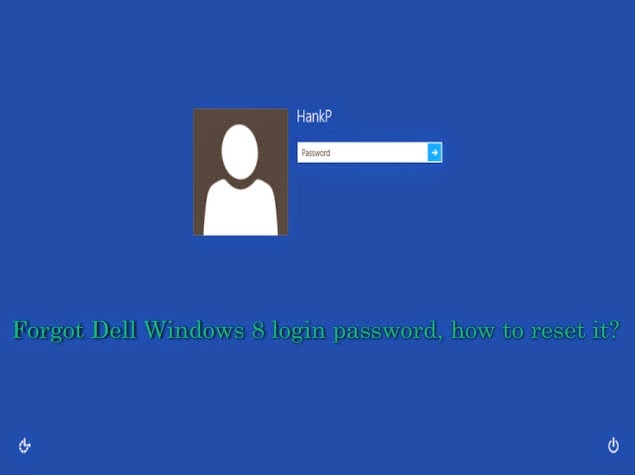
“I forgot my Dell laptop password. It runs on Windows 8. What can I do? ” Many Dell users ask the similar questions on the Internet.  So what on earth can we do to deal with the Windows 8 password forgotten problems on Dell? Here I am honored to share 2 easy options to reset forgotten Dell Windows 8 password with those who need help in this case. forgot dell windows 8 password


Option 1: Reset Windows 8 Password(http://www.lostwindowspassword.com/article/windows-8-password-reset.htm) on Dell with a previous created password reset disk

If you have created a Windows 8 password reset disk in advance then you can continue with this option. If not please turn to Option 2. Follow the steps below:


Step 1: Start the locked Windows 8 computer and login with a wrong password


when you type in a wrong password, you will see a message “the password is incorrect” will pop up, hit OK to try again, and then you will see “password hint” and “Reset password” links under the login box.


Step 2: Reset the forgotten password with your password reset disk


Insert the password reset disk to your Dell computer and hit the “Reset password” link, then the Password Reset Wizard window will come out. Fill in the blank form in the following picture to create a new account. Thus you can reset the forgotten password and use the new account to login.

follow the wizard to reset the password


Option 2: Take Use of Windows Password Key(lostwindowspassword.com) to Reset Dell Windows 8 Password


Windows Password Key is an easy-to-use tool designed for resetting Windows local account or domain passwords on Windows 8. Passwords can be reset in 3 minutes, no matter how long and complicated your Windows 8 password is. Besides password recovery function, it can also change any local admin/user/domain admin password, and create a new administrator account via CD/DVD or USB drive. It also works with Windows 7/Vista/XP/2008/2003/2000 and etc. Detailed steps to use it are as follows:


Step 1: Create a Windows 8 password reset disk


Firstly download and run the program in a computer you have access to, and then insert a blank CD, DVD or USB flash drive to the computer. After that according to the wizard burn a Windows 8 password reset disk with the CD/DVD/USB flash drive.


Step 2: Insert the password reset disk to your locked Dell computer and reset the forgotten Windows 8 password


Power on the computer and press “F2” (or other keys) to get into bios mode. Then set the computer boot from the inserted disk. After loading files, Windows Password Key will show all your Windows 8 user accounts. Select the target account to reset the password.


Step 3: Reboot the computer

Click reboot button to re-start the computer. Remove the password reset disk when the computer reboots. Now you can logon your computer with the new password.

If you forgot Windows 8 password on Dell and want to reset it with ease then these 2 options are shortcuts to help you regain access to your locked Dell computer. Hope to help you with this post.